APPENDIX B: TOOLBAR COMMANDS
Capture's Main Window contains a toolbar providing quick access to important functionality. The toolbar can be used to open RAD8 and RAD7 data files, switch between connected devices, and perform utility operations such as renaming a device, saving a RAD8 screenshot, and checking for the availability of RAD8 Parameter Patches.
These commands are described in detail below.
Open File Button
The Open File button brings up the Open Dialog, in which a RAD7 Data File may be opened in a Graph Window.
Device Selection Buttons
Each connected RAD8, RAD7, and Drystik is represented as a toolbar button, labeled with a serial number or custom device name. The content of the Main Window pertains to whichever device is currently selected in the toolbar.
Add Device Button
The Add Device button manually adds a new RAD8, RAD7, or Drystik. It is necessary to add a device manually when it is being reached via a local network. Additionally, a RAD7 must be added manually if it does not have RADLINK installed and cannot be discovered automatically. When a device is added manually, the Connection Settings panel appears. This panel is described in detail in the Connecting to the Instrument section.
Device Options Menu

Figure 1: The Device Options Menu in the Main Window toolbar.
The Device Options Menu is labeled with a gear icon and consists of several commands:
RAD8/RAD7/Drystik Connection Settings
The RAD8/RAD7/Drystik Connection Settings command brings up the Connection Settings panel, which can be used to specify how the computer connects to the selected device. It is also used when connecting to a RAD7 or Drystik via a local network. The Connection Settings panel is described in more detail in the Connecting to the Instrument section
Rename RAD8/RAD7/Drystik...
The Rename RAD8/RAD7/Drystik command brings up a dialog box in which a new name for the selected device may be entered. The specified name appears under the device's icon in the toolbar. If no name is specified, the RAD7 or Drystik is referred to by its serial number.
Add RAD7 Group...
The Add RAD7 Group command creates a new RAD7 Group for the Chart Recorder and displays the RAD7 Group Configuration dialog, which is used to specify the group's name and its member RAD7s. More information is available in the Monitoring Device Groups section.
Add RAD8 Group...
The Add RAD8 Group command creates a new RAD8 Group for the Chart Recorder and displays the RAD8 Group Configuration dialog, which is used to specify the group's name and its member RAD8s. More information is available in the Monitoring Device Groups section.
Download Data From All RAD7s
The Download Data From All RAD7s command makes it possible to quickly obtain all of the raw data from each connected RAD7. This process is described in the Downloading From All RAD7s section.
Save RAD8 Screenshot...
The Save RAD8 Screenshot command obtains a snapshot of the selected RAD8's current screen content, and saves it to a user-specified location on the computer as a PNG image. While the RAD8 is busy preparing the screen image for transfer to the computer, a red warning indicator light will remain illuminated above the RAD8 touchscreen. Note that the RAD8 touchscreen should be On, and not Off due to inactivity, as configured in the Display panel of the RAD8's System Settings.
Download RAD8 System Log...
The Download RAD8 System Log command obtains a log of the RAD8's activity, and saves it to a user-specified location on the computer as a text file. If the RAD8 is behaving incorrectly, Durridge may request a copy of the System Log for troubleshooting purposes.
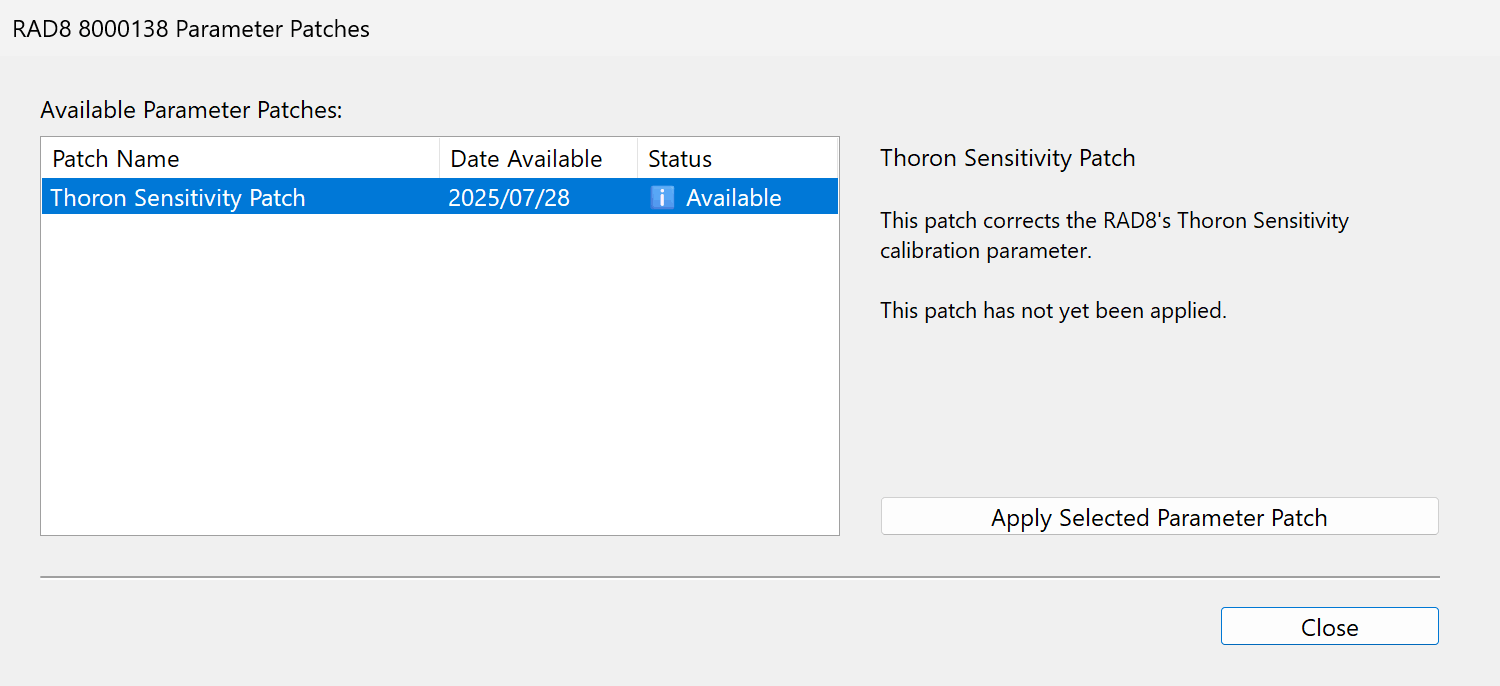
RAD8 Parameter Patches...
The RAD8 Parameter Patches command checks for the availability of Parameter Patches for the selected RAD8. Parameter Patches improve RAD8 measurement accuracy by assigning updated instrument parameters based on the latest empirical research and calibration records. If one or more Parameter Patches are available, they will appear in a list as shown in Figure 2, below. To apply an available Parameter Patch, select it from the list, and click the Apply Selected Parameter Patch button. Once the patch has been applied, a checkmark icon and message will appear, indicating that the operation was successful. When finished, click the Close button.