

OBTAINING RAD8 AND RAD7 DATA |
|
|
This section will provide instructions on connecting the RAD8 and RAD7 to a computer, using Capture to detect the instrument. It will also cover downloading radon data from the instrument, and displaying the data in a graph. Note that Capture 8 Pro customers are eligible to sign up for Capture Cloud, which allows a RAD8 connected to Wi-Fi to automatically upload radon test data to a cloud-based server administered by Durridge. The data immediately becomes available from within Capture, without the need to physically connect the RAD8 to a computer. For details, please see the Capture Cloud section. |
|
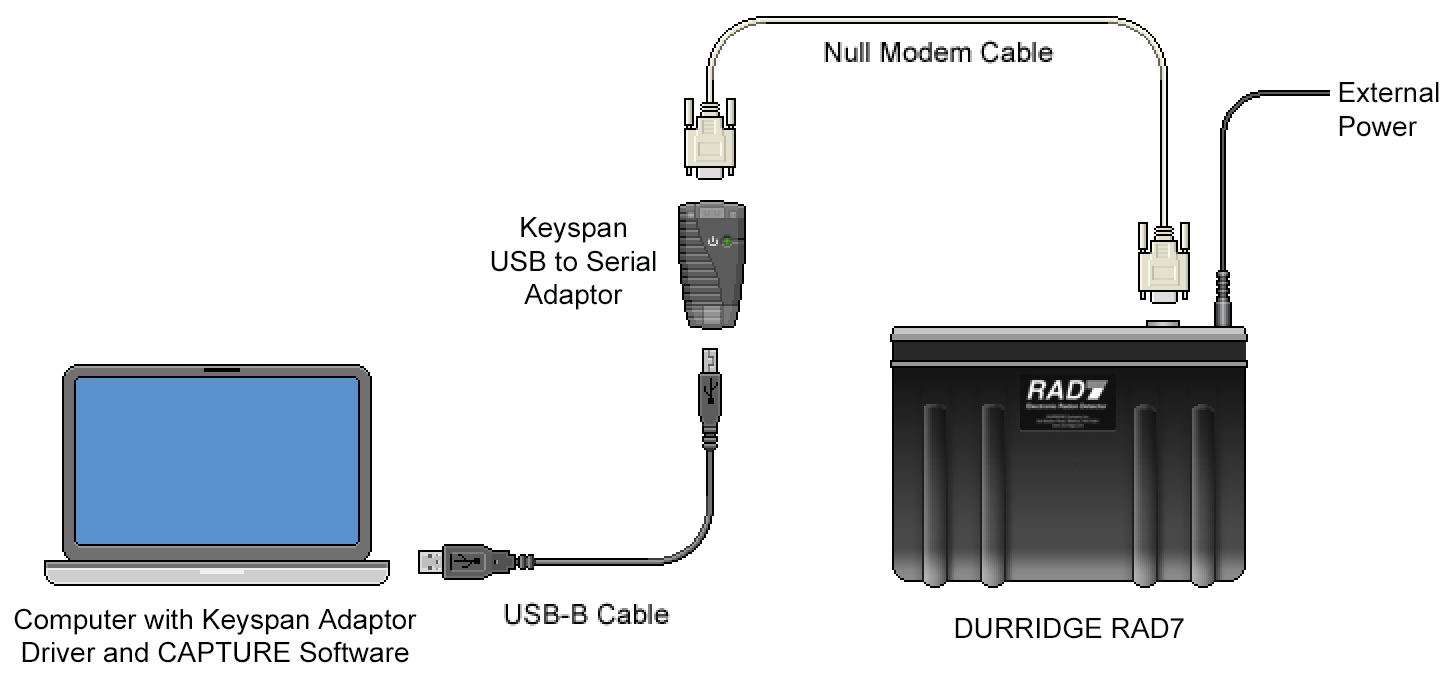
RAD8 Setup Make sure the RAD8 contains valid tests, and that it is plugged into a stable power source and powered On. The included USB-A to Mini-B cable should be used to connect the RAD8 to the computer. It may be necessary to install USB to Serial adaptor driver software on your computer. Drivers are available at the Software Drivers page at the Durridge website. The RAD8's built-in Wi-Fi allows it to communicate with Capture without a USB cable. For more information, see the Network and Remote Connectivity section. Figure 1 shows how to connect the RAD8 to a computer using the USB-A to Mini-B Cable. RAD7 Setup Make sure the RAD7 contains valid tests, and that it is plugged into a stable power source and powered On. The included USB to Serial adapter cable should be used to connect the instrument to the computer. It may be necessary to install USB to Serial adaptor driver software on your computer. Drivers are available at the Software Drivers page at the Durridge website. If the computer has a physical serial port, an RS232 DB9 female to female null modem cable may be used to connect the RAD7 directly to the computer's serial port. For wireless RAD7 connectivity, a Bluetooth Serial adapter may be used to facilitate communication, as explained in the Network and Remote Connectivity section. Durridge offers preconfigured Parani SD-1000 Serial to Bluetooth Adapters as an optional RAD7 accessory. Figures 2 and 3 show how to connect the RAD7 to a computer using two different kinds of USB to Serial adapters: the StarTech adapter (Figure 2), and the Keyspan adapter (Figure 3). |
|
|
|
When Capture starts up, the Main Window will appear. This window contains controls used for downloading radon data from the RAD8 and RAD7, opening existing radon data files from disk, and performing communication operations. When the Main Window first appears, some controls will be disabled. These controls become active only when a connected instrument has been detected. |
|
|
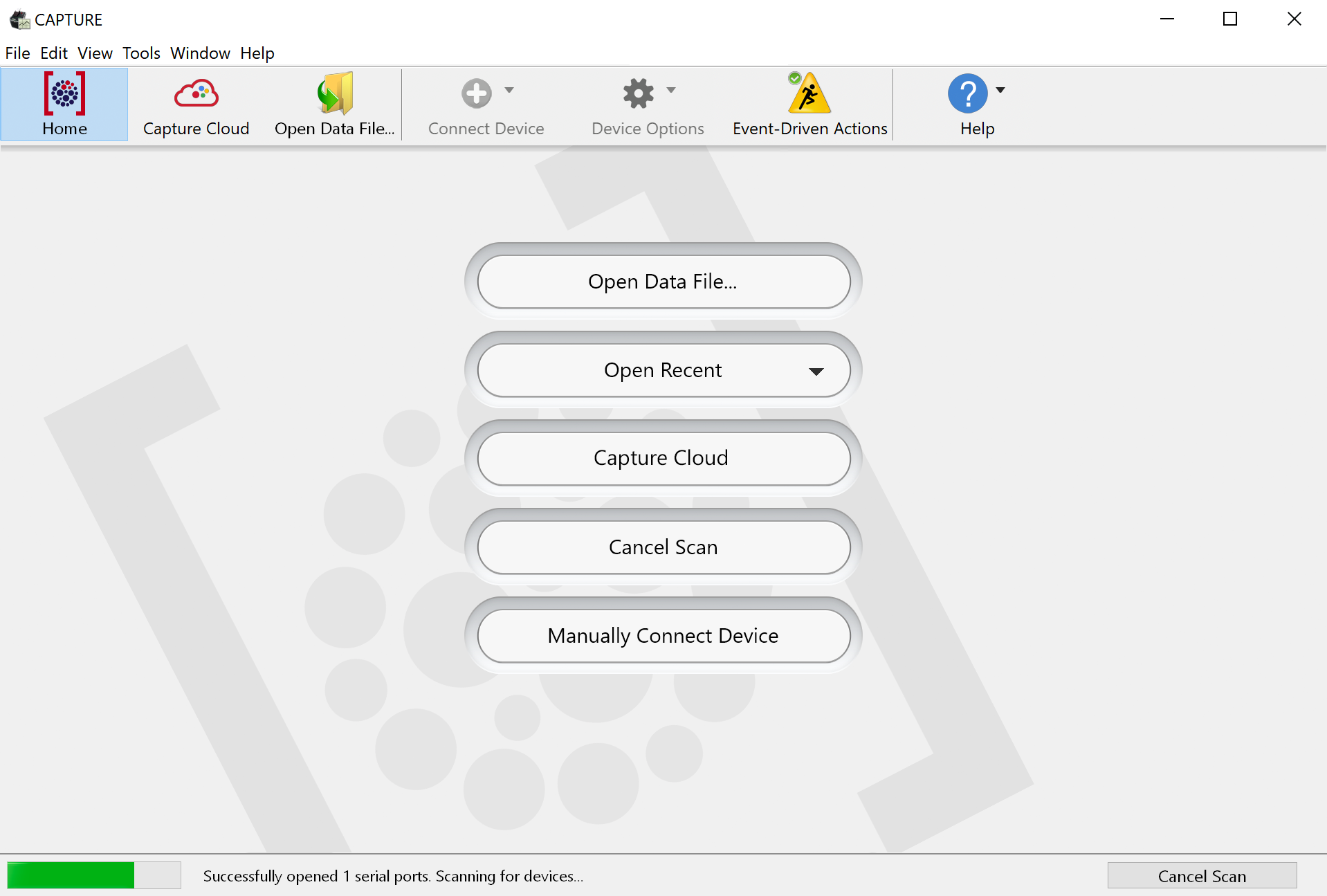
When Capture launches, it will automatically detect any connected RAD8s, RAD7s, and Drystiks, as long as the Scan for Connected Devices at Launch option is enabled in Capture's Settings Window. This option is enabled by default. (Note that a RAD7 must contain RADLINK in order for it to be detected.) When an instrument is detected, its icon will appear in the toolbar at the top of the Main Window. Selecting the instrument's icon provides access to its data and makes it possible to monitor its status. If Capture does not automatically detect the connected instrument(s), click the Scan for Devices button at the lower right corner of Capture's Main Window. When Capture scans for devices, a scanning progress bar appears at the bottom of the Main Window as shown in Figure 4, above. When an instrument is detected, its icon will be added to the Main Window toolbar. |
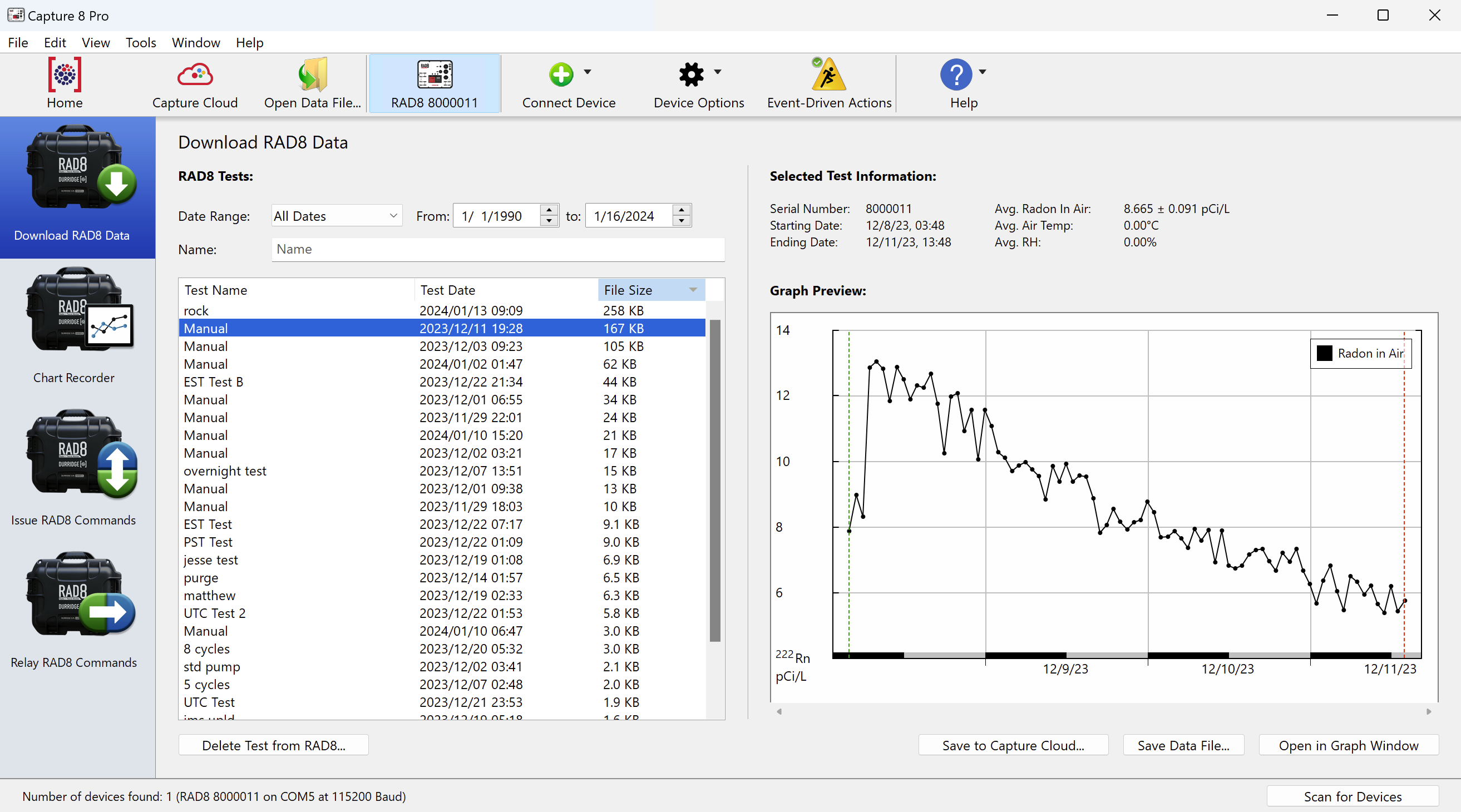
Downloading a RAD8's contents to your computer makes it possible to graph, analyze, and share the RAD8 data, as well as preserve it against accidental erasure. It is recommended that the data be downloaded upon completion of each on-site test, or as frequently as is practical. Along the left side of Capture's main window is a column of icons for connecting to four panels used for performing common RAD8 communication operations. These include Download RAD8 Data, Chart Recorder, Issue RAD8 Commands, and Relay RAD8 Commands. The Download RAD8 Data panel will be selected by default. Select the Download RAD8 Data panel if it is not already highlighted. The following controls will appear, as shown in Figure 5, below:
|
|
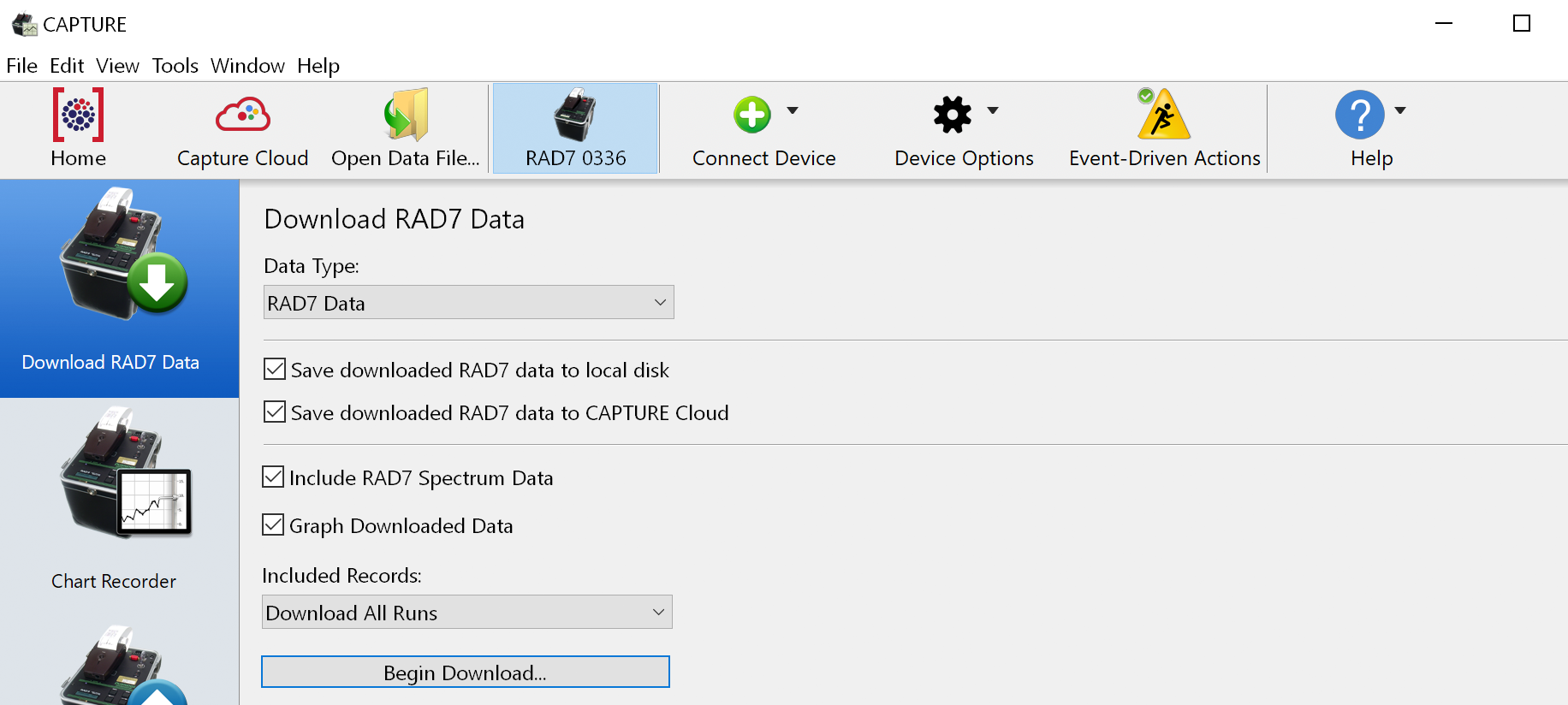
Downloading a RAD7's contents to your computer makes it possible to graph, analyze, and share the RAD7 data, as well as preserve it against accidental erasure or corruption. It is recommended that the data be downloaded upon completion of each on-site test, or as frequently as is practical. Along the left side of Capture's main window is a column of icons for connecting to several panels used for performing common RAD7 communication operations. These include Download RAD7 Data, Chart Recorder, Issue RAD7 Commands, and Relay RAD7 Commands. After Capture has connected to a RAD7, a series of brief tests will be performed to determine which communication operations are possible. The Download RAD7 Data panel is enabled for all RAD7s, and the other panels will be enabled as long as the RAD7 contains RADLINK. Select the Download RAD7 Data panel if it is not already highlighted. The following controls will appear, as shown in Figure 6, below:
If RADLINK software is installed on the RAD7, the downloaded RAD7 data file will contain supplementary information including the RAD7 device identity, thoron data, and run and cycle numbers, and the file name will use the .R7CDT extension. Files lacking this supplementary data use the .R7RAW extension. While R7CDT files are somewhat larger on disk than R7RAW files, both are quite compact and storage requirements should not be a concern. |
|
|
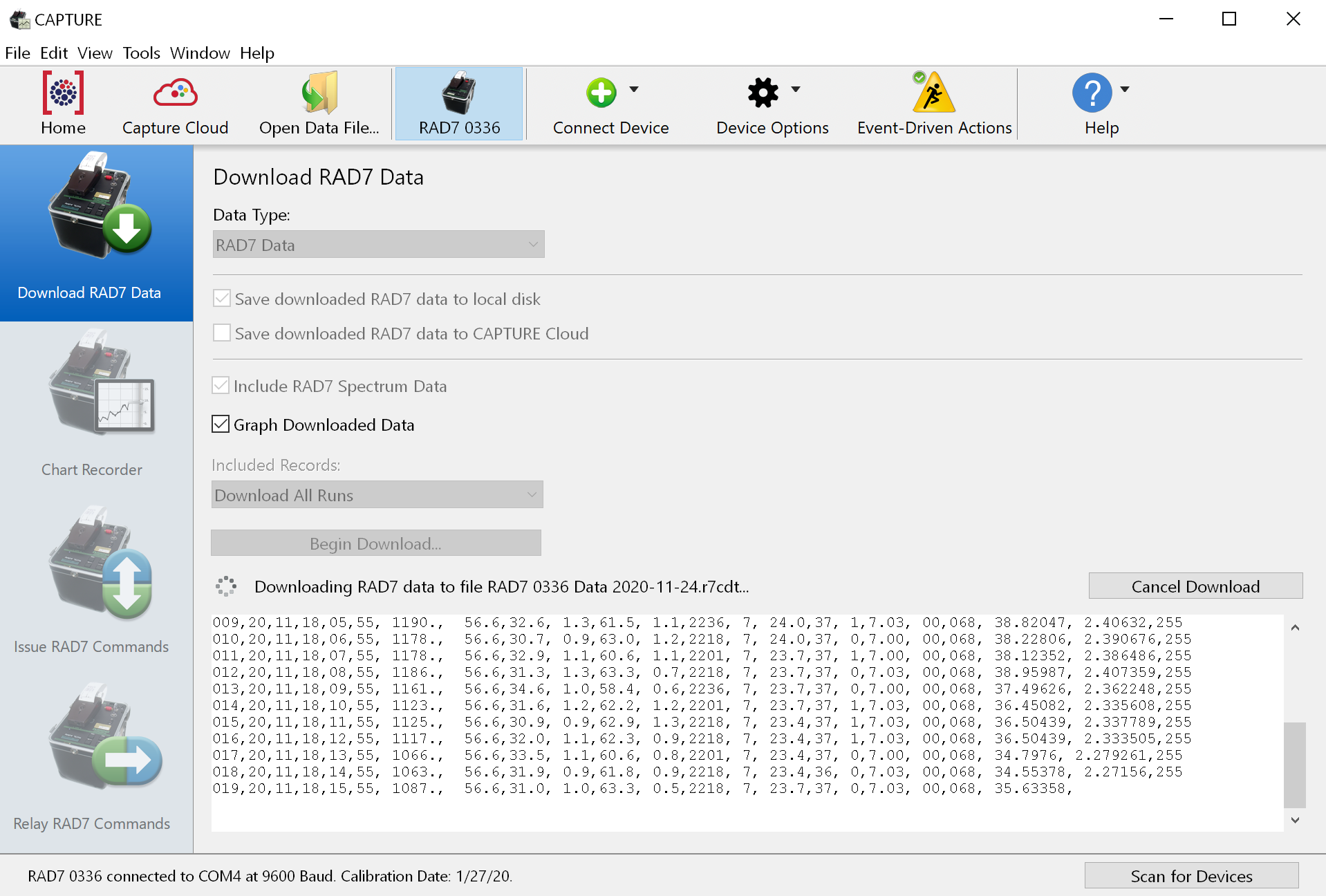
After specifying the appropriate download parameters, click the Begin Download button. You will be prompted to specify a name and location for the downloaded RAD7 data file. If the RAD7 has RADLINK, data will begin arriving almost immediately, as shown in Figure 7, below. Otherwise it will be necessary to start the RAD7 manually. To start the RAD7 manually, use the RAD7 keypad to choose Data, and then Com. Then key in the desired run number and press [ENTER]. You will have sixty seconds to complete this procedure before Capture aborts the download due to an absence of incoming data. The download may be canceled at any point using the Cancel Download button. |
|
As data records are received, they will fill a text area at the bottom of the window as shown in Figure 7. When the data retrieval process is complete, the acquired data will be saved to the specified location on disk and/or to Capture Cloud. If the Graph Downloaded Data checkbox is checked, a Graph Window will appear, and it will display the acquired data as shown in Figure 10, below. |
|
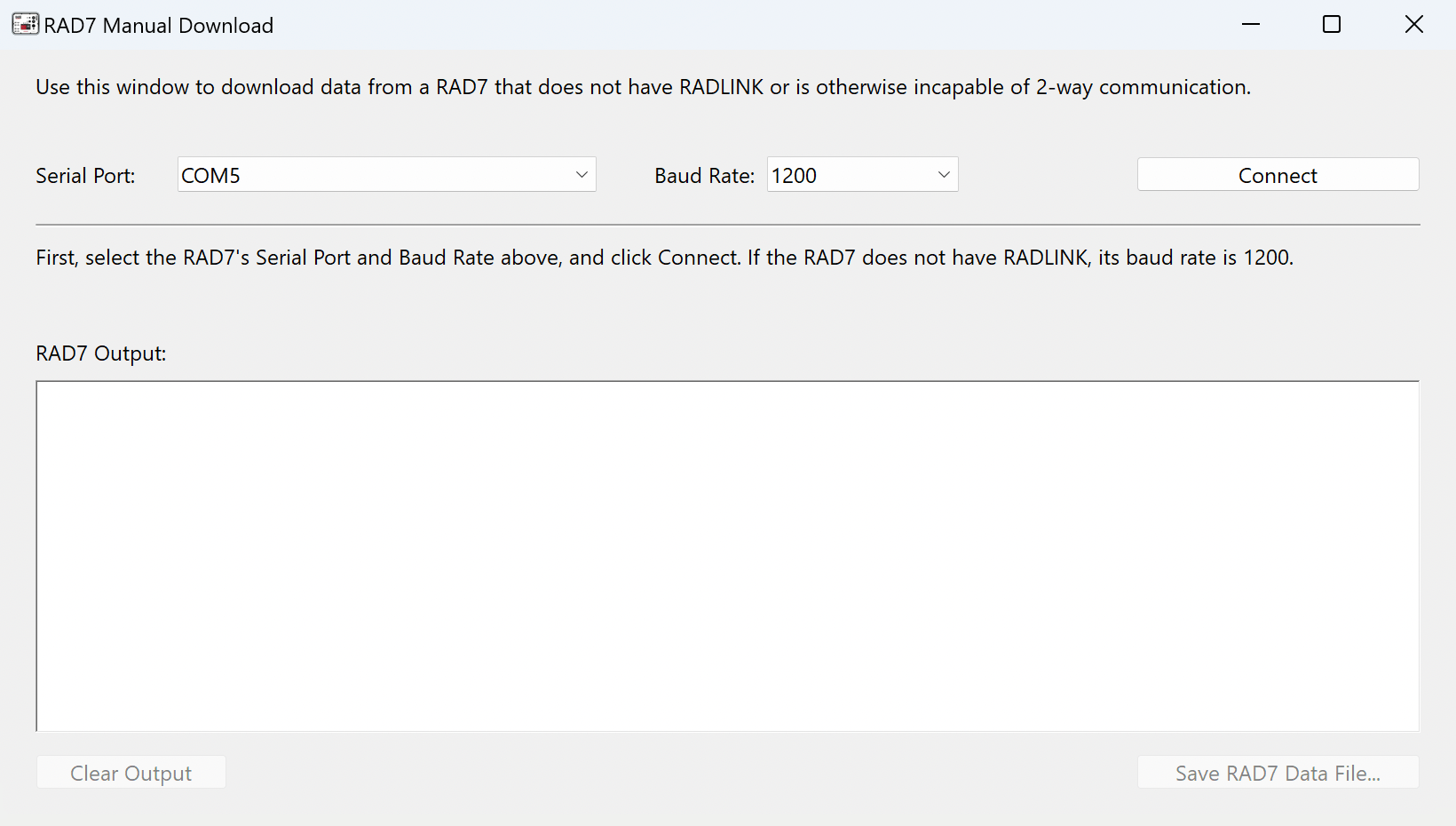
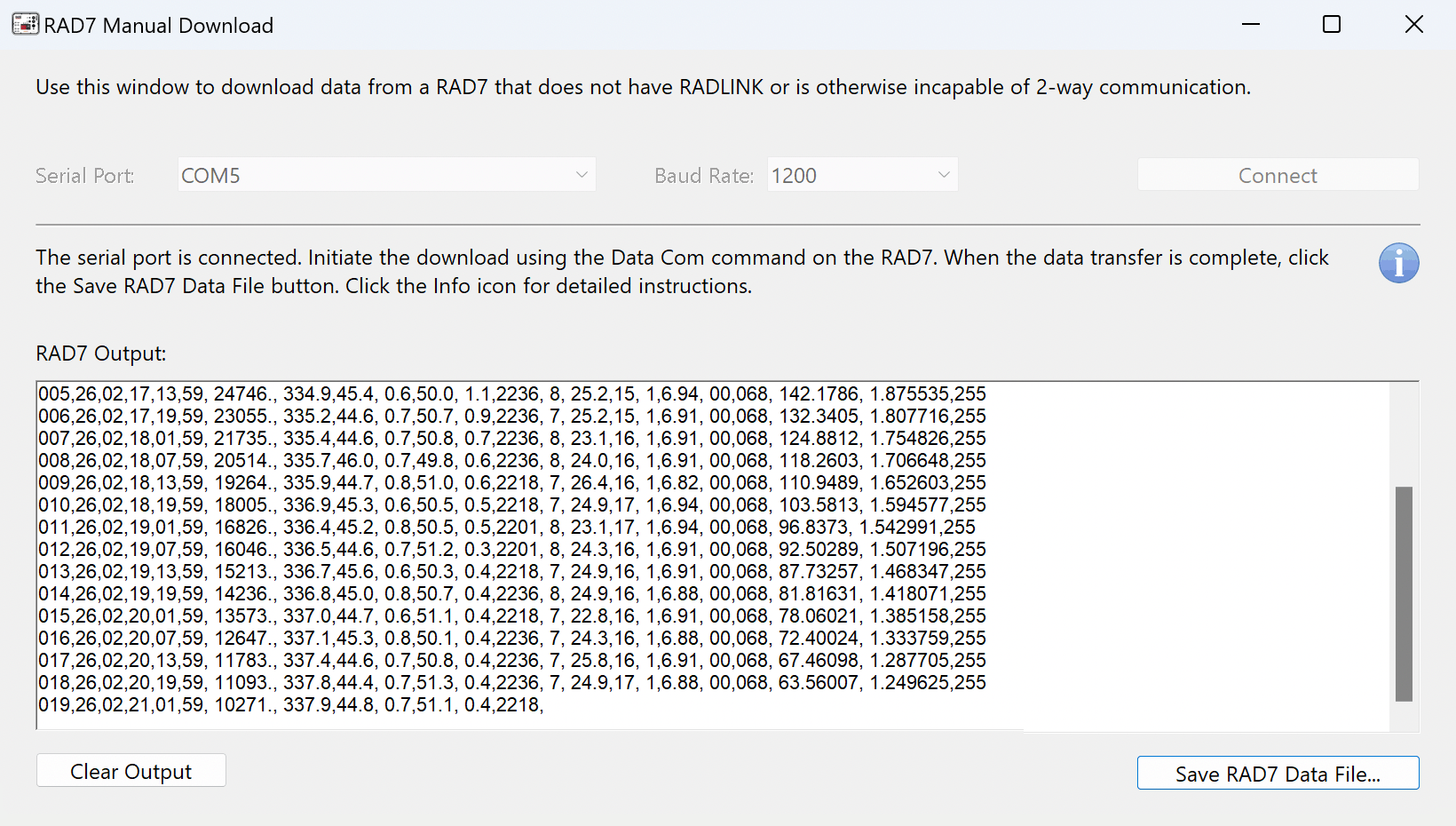
Downloading from a RAD7 without RADLINK Capture can only detect that a RAD7 is connected if the instrument contains RADLINK software. You can check to see whether RADLINK is present by navigating to the Special menu on the RAD7 and pressing the Enter button. If the Special menu contains commands such as Ident and SprOn, RADLINK is present. With RADLINK it is possible to obtain data from the RAD7 without having to press any buttons on the instrument itself. If the RAD7 does not have RADLINK installed, or if RADLINK has been damaged, it may still be possible to download data to Capture by initiating the data transfer from the RAD7 manually. The manual download process is explained below. RADLINK can be reinstalled, if necessary, by following the instructions in the RADLINK Operations section. Alternatively, RADLINK will be reinstalled when the RAD7 is returned to Durridge for calibration. Unlike the RAD7, the RAD8 does not require RADLINK to communicate with a computer. To download data from a RAD7 without RADLINK, connect the instrument to the computer and choose RAD7 Manual Download... from the Tools menu in Capture's menubar. The RAD7 Manual Download Window will appear. Use the Serial Port pop-up menu to specify the serial port to which the RAD7 is connected. Use the Baud Rate pop-up menu to specify the device's baud rate. A RAD7's baud rate is typically 9600, if a RAD7 does not have RADLINK, its baud rate will revert to 1200. After specifying the Port and Baud Rate settings, click the Connect button. Next initiate the data transfer using the controls on the RAD7. To do this, navigate to the RAD7's Data menu, choose the Com command, and use the arrow buttons to select the desired run number to download. Use the RAD7's Enter button to confirm the selection. As the RAD7 test data is transferred it will appear in the the RAD7 Output text area. Wait for the data to finish transferring, and then click the Save RAD7 Data File... button. Specify a name and location for the file. |
The Graph Window displays radon concentration data across a timeline, with higher radon concentrations plotted higher on the graph image. In addition to radon, a graph may display thoron, temperature, and humidity data.
A multitude of controls are available for navigating RAD8 and RAD7 data graphs, as discussed in the Graph Window Navigation section. Graph data can be configured to reflect particular radon test protocols involving radon-in-water accessories; this is discussed in the Setting Test Parameters section. Graph data and graph images can be exported and printed for use in spreadsheets and presentations using the Export commands in the File Menu. For more details, please see the Data Export, Reports, and Printing section. |
|

|
When the Graph Window opens, it may be necessary to specify certain parameters which affect the interpretation of the data. For RAD8 data these are referred to as the Test Parameters, and for RAD7 data these are referred to as the Run Parameters. For most projects it will be appropriate to leave these parameters at their default settings, but if the radon data was collected with the use of certain Durridge accessories such as the RAD AQUA, Water Probe, or Big Bottle System, then some configuration will be required. This is done using the Test Parameters Window (for RAD8 data) or the Run Parameters Window (for RAD7 data). Please see the Setting Test Parameters Section for more details. |
Capture makes it easy to quickly download all of the data from each connected RAD7. Once the RAD7s have been discovered, the Download Data From All RAD7s command will become enabled in the Options menu located on the Main Window toolbar. |
|
|
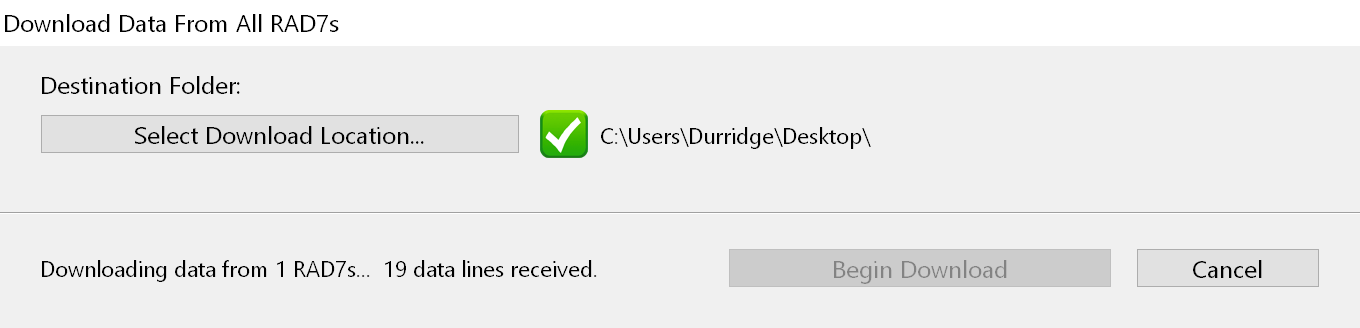 Figure 11: Downloading data from all connected RAD7s.
 |
